
Dealing With a Canon Printer That Won't Recognise Your New Ink
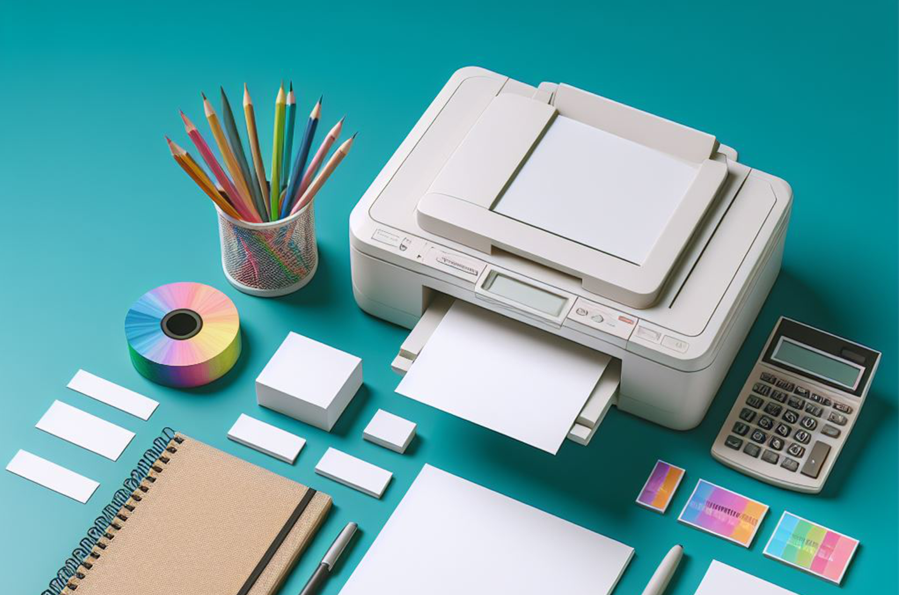
Few things test your patience quite like a printer that refuses to cooperate when you're in a rush.
You’ve just gone out, bought a fresh set of Canon ink cartridges, popped them into the slots, and your Canon printer immediately serves up an error message. Whether it tells you the cartridge "cannot be recognised" or starts flashing support codes like 1401 or 1687.
In this guide, we’ll help you resolve these errors easily.
Did You Leave the Hidden Plastic On?
When you're rushing to unbox a new ink tank, it is common to miss a tiny bit of the packaging.
Pull the cartridge back out and take a proper look at it. Is there a bright orange protective cap still clipped onto the bottom? Is there a bit of clear or coloured plastic tape covering the metal bits? Peel every single piece of protective film off, slot it back in, and push down until you hear that distinct click. If it doesn't click, it isn't sitting right.
Give the Contact Points a Quick Clean
Your printer talks to the cartridge via tiny metal bits. If a speck of dust, paper lint, or a smudge of dried-up ink gets between them, the connection drops out and the printer assumes nothing is there.
First, turn the printer completely off and pull the plug from the wall. Open the cover, let the carriage slide across, and take out the problem cartridge.
Look at the back of the ink tank for a tiny golden chip. Grab a clean microfibre cloth or a glasses cleaner and give that chip a quick, gentle wipe. Once it looks clear, pop the cartridge back in, plug the machine back into the wall, and turn it on.
Try a Hard Memory Reset
Sometimes the printer's brain gets confused. It stays stuck on the old "empty" data from your empty cartridge and completely ignores the fact that you just handed it a brand-new one. A quick power cycle forces it to clear its memory and look at the hardware properly.
While the printer is still turned on, pull the power cord straight out of the wall socket. Don't use the power button, just pull the plug. Walk away and leave it completely disconnected for about three minutes. This lets any leftover electricity drain out of the machine's components.
Make Sure You Bought the Right Model
If absolutely nothing else has worked, check the cardboard box your ink came in.
Canon is known for naming their printers with incredibly similar models while using totally different cartridges. A cartridge made for a Canon TS series printer can look identical in shape to one meant for a TR series, but the digital chip on the back won't match up. Double-check that your exact printer model number is written on the back of the ink packet.
If the numbers are right and the clean-up didn't work, take it back to the shop and ask them to swap it over for a new one.
Final Thoughts
Resolving a Canon ink recognition error is typically a matter of restoring proper communication between the cartridge and the printer hardware. By systematically removing hidden packaging, cleaning the microchip connection points, and clearing the printer’s temporary memory with a hard reset, you can generally resolve these disruptions directly from your desk. If you are utilising third-party cartridges, employing the control panel bypass button will often override persistent software alerts.
Should the error remain unresolved after following these steps, cross-reference the cartridge model numbers.


Posted by inGenium Ltd

iNGENIUM Ltd. is an software development company from EU which delivers a full range of custom .NET, web and mobile solutions for different business to meet partner's demand.
The Power of Imagination Makes Us Infinite
Related Posts


Struggling to get your profile noticed no matter how often you post?

Imagine craving a beef burger really badly. So, you end up searching all the nearby restaurant options. What is the one thing that helps you decide where to order from?

The growth of digital advertising has unlocked countless opportunities but also introduced significant risks for modern marketing teams.
Few things test your patience quite like a printer that refuses to cooperate when you're in a rush.

Staffing shortages are squeezing hotels on both sides of the Atlantic.







Comments
comments powered by Disqus